Live 12 Release Notes
12.4 Release Notes
May 5, 2026
New Features and Improvements
Link Audio
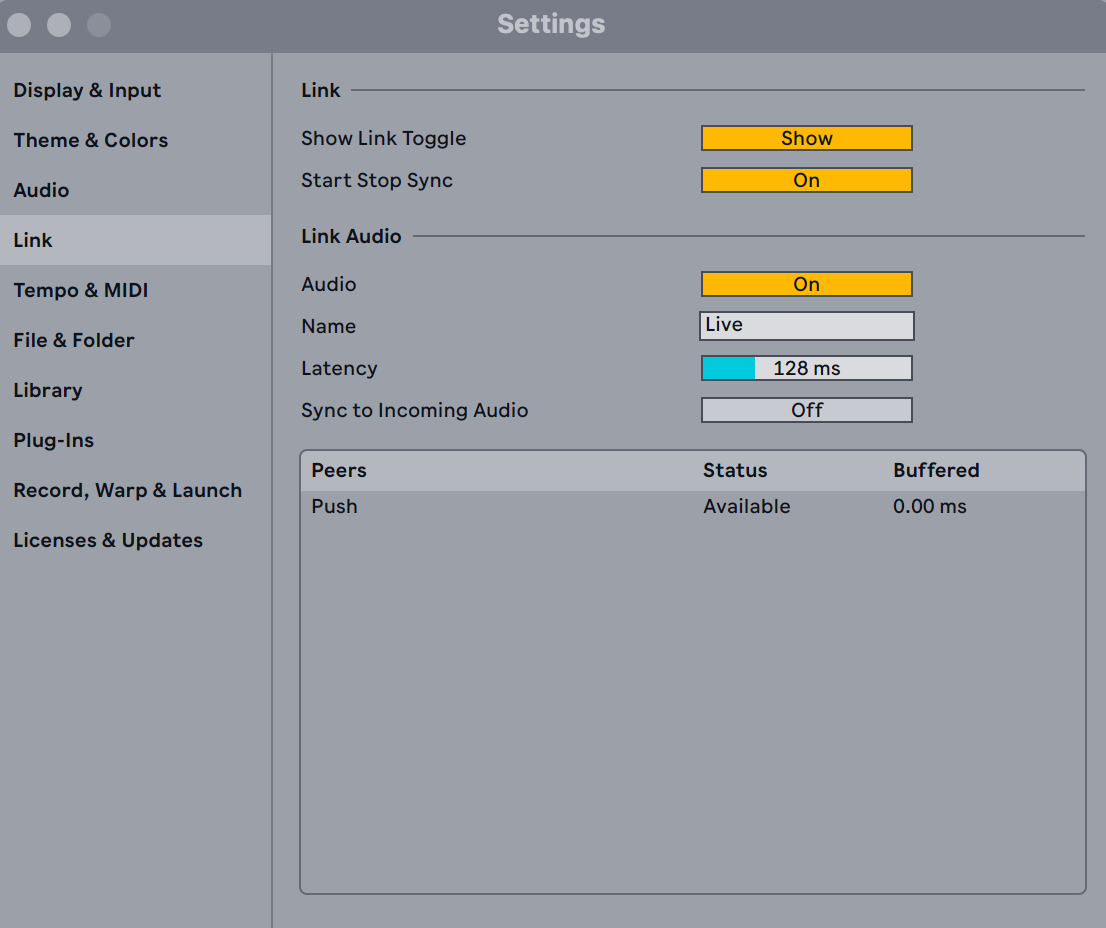
Link Audio is the new feature which enables users to stream audio or receive audio via Wifi or Ethernet. This allows peers to connect devices using the Link feature available at the top left corner of the screen. In the Preferences menu, Link is displayed now in its separate tab, which includes features like showing the Link toggle on at the top left of your screen and enabling audio streaming.
A separate Link page has been added to Live's Settings. By going to the Preferences menu and navigating to the Link tab, you will find here, in the Control Bar at the bottom the available devices or peers you can connect to, along with their device name, status and buffer information. The Link Audio devices available can now be seen in the Input section of the selected Track.
Sending and receiving audio is now possible with the Link feature. To send or receive audio, make sure that the feature is enabled on all the participating devices and that you have selected the correct Audio Driver and Source in your Audio tab. Once all connected, your device is now discoverable for other devices connected on the same network. To receive audio, you can navigate to your desired audio track and change the input source to one of the available devices on your network. By arming the track, you can now record audio from your peer's device.
The dedicated Link page includes new features:
-
Audio - Enable the Audio toggle to activate Link Audio. Make sure the Link toggle in the Control Bar is also enabled before sending or receiving audio.
-
Name — Enter the name shown to connected peers.
-
Latency — Sets the input latency applied to audio received from peers. Adjust based on your network performance and workflow. The current buffered amount for each peer appears in the Peers list and updates as you adjust the slider.
-
Sync to Incoming Audio — Enable when monitoring incoming audio from Link Audio peers in Live. When enabled, Live's Link session is delayed by the set latency value. All other peers in the session must have Monitoring Mode set to Off.
-
Peers — Lists current Link Audio peers along with their status and buffered amount.
Attention: audio buffer size can affect the quality of your incoming signal, so we recommend for streaming purposes that the receiving devices have a low buffer size and the outputting ones have a higher buffer size. For better quality, we recommend using wired LAN connection with Link Audio. Wi-Fi is supported, but the quality of the audio stream is dependent on the quality and stability of the network.
Erosion
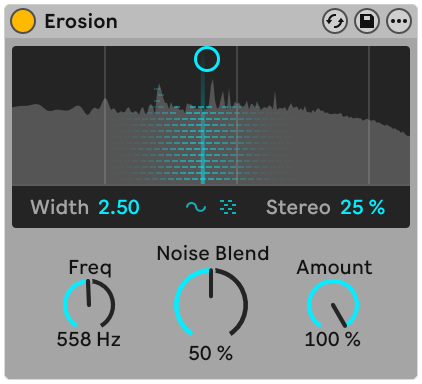
Erosion now includes a built-in real-time visualizer with a way to alter the Frequency and the Amount of the effect applied to the signal by dragging the blue control in the visualizer.
On the bottom, in between the Frequency and Amount parameters, a new Noise Blend control has been added, which lets you transition smoothly between sine modulation and noise modulation. By turning the Noise Blend to "0%", the Width control will be grayed out and turned off, due to it not having any audible effect on the incoming signal.
You can also now select the amount of stereo width which allows you transition from a mono to a stereo modulation source. The Width control adjust the quality factor of the effect.
Moreover, the algorithmic latency in the devices has been reduced to 2ms from 5ms in the previous version of the device.
Chorus Ensemble
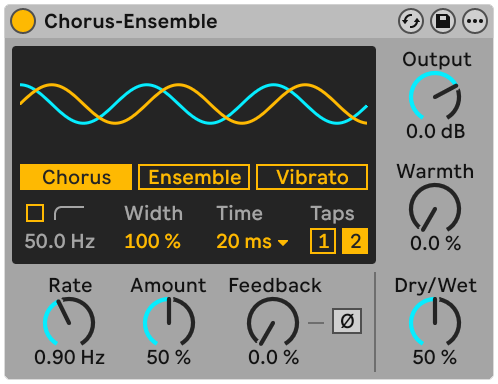
The Classic mode in Chorus-Ensemble effect is now named Chorus, since it reflects better the resulting effect.
For more control over the time between delay line, a time parameter has been added to the Chorus-Ensemble audio effect. Now, you can select between different preset time intervals for your desired effect. The Auto setting preserves the original behaviour where the time is scaled dynamically per band and with the modulation amount.
Moreover, you can now select with Taps the number of delay lines present in your signal chain by changing the toggling either "1" or "2" Taps.
The default Auto value for the Time parameter maintains backward compatibility with Chorus-Ensemble presets from Sets created before 12.4.
Delay
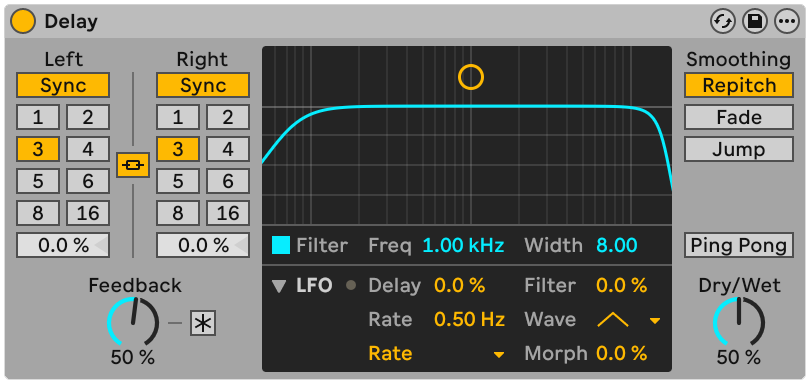
The newest update bring to Delay new parameters that provide more modulation possibilities and LFO shapes. The LFO rate can now have as denominator either Hertz, milliseconds or it has the option to be tempo-synced to beat divisions.
You can toggle the newest LFO parameters navigating at the bottom of the Filter visualizer in the left corner. By toggling the tab the following parameters will appear:
-
Rate (Frequency) - permits you to adjust the speed of the LFO in the selected measurement unit.
-
Measuring Unit - here you can toggle between Rate (Hertz), Time (milliseconds & seconds), Synced (note values, beats and bars, synced to the project tempo in binary divisions), Triplet (same as Synced, but in ternary divisions), Dotted (note values extended by half their length, e.g. a dotted 1/4 = 1.5 beats), 16th (note values subdivided into 16ths of a bar, the smallest standard grid division).
-
Wave - allows you to select from 7 different wave shapes (Sine, Triangle, Ramp Up, Ramp Down, Square, Sample & Hold - abbreviated SH, and Wander - which is a random continuously generated waveform)
-
Morph - you can use this parameter to shape the selected waveform.
Separate Stems for Time Selection
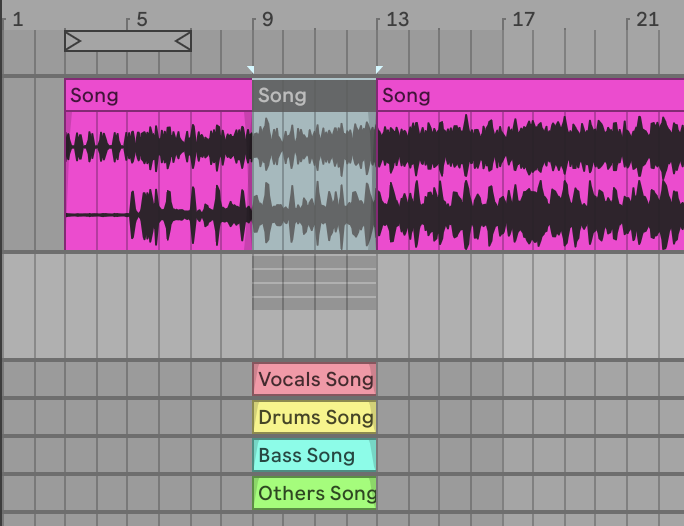
The Stem Separation feature can now extract individual stems from a time-selection. To access this feature, you can select the track of your choice and a time period, and right-click to open the context menu where you can access the command.
For faster processing times, the Stem Separation process now only takes place in the audible portion of the clip, marked by its start-end position in the grid.
Merge Selected Stems to a Single Track
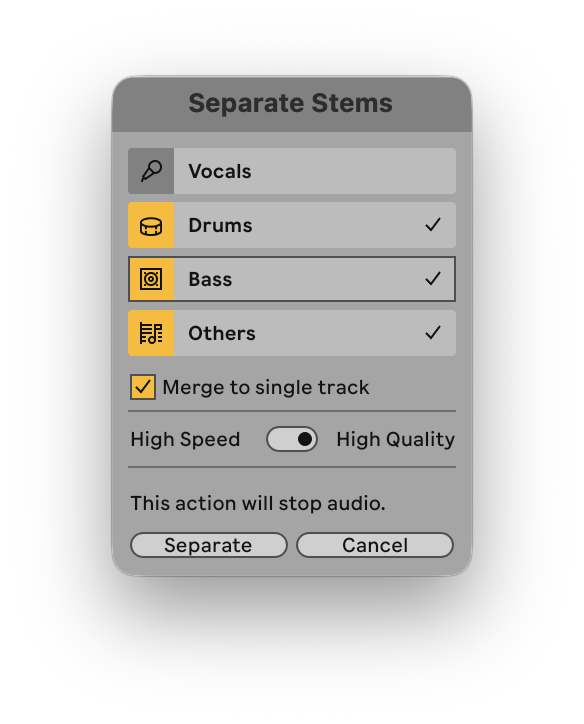
Now, in the Separate Stems dialog, you can select to merge multiple stems into a single track by ticking the "Merge to single track" checkbox.
This can be particularly useful if you want to combine two types of stems. Note that you can use the Merge to single track checkbox only if two or three stems are selected.
Learn View
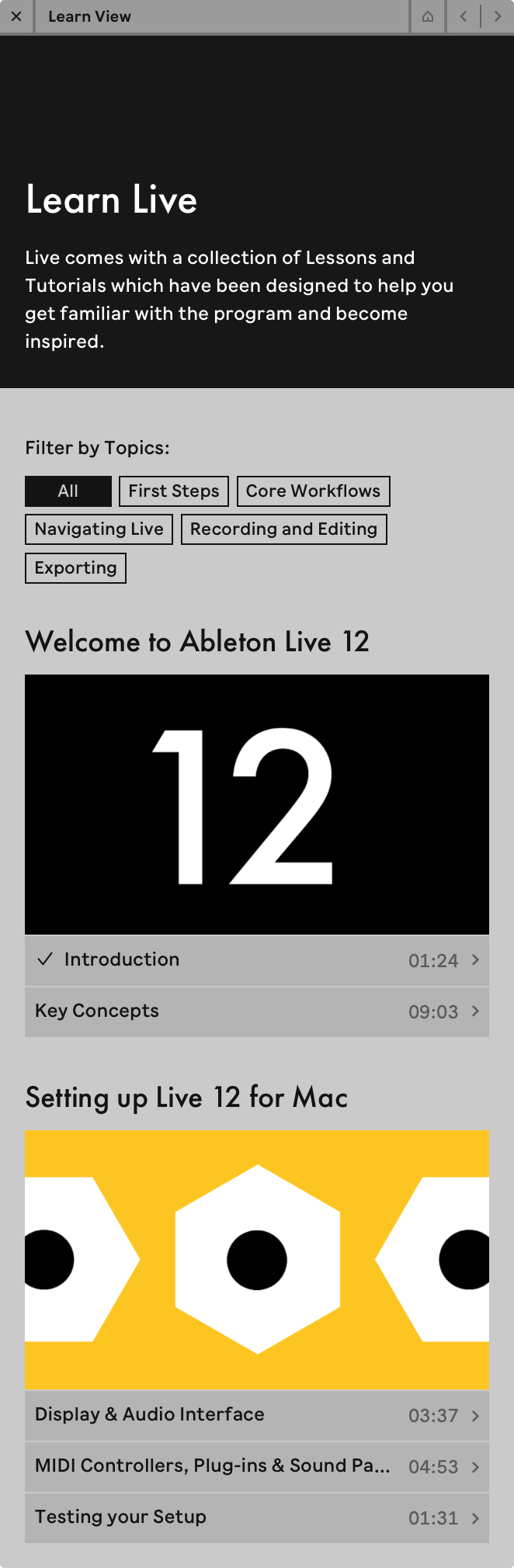
In the newest addition of Live 12, peers unfamiliar with the Digital Audio Workstation and experienced peers can now easily learn core concepts in the Learn View. This view replaces the old Help view and its videos with a structured and easy to understand road map for core concepts in Live 12.
You can find this new Learn View by navigating at the top of your application and clicking Help and then Learn View. On the right side of the screen you will see the Learn View appear.
You can filter topics by tags or watch lessons in a separate Picture-in-Picture window to have more visibility in Live while you learn. The video lessons are also available via the Learn View playlist on YouTube. The playlist updates frequently, so you do not have to wait for the new addition of Live to learn and access new contents.
The Pack Lessons, previously available for new published Packs via the Help menu, are now Pack Info Pages to avoid confusion regarding the new Learn View.
Quick Tags Improvements
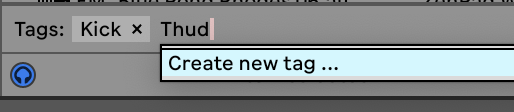

You can create new tags, parent tags and tag groups directly from the Quick Tags panel. You can do this by typing in a tag name, and if it is non-existent, you can select the option Create new tag.... Next, you have to select either an existing tag group or parent tag for your new Tag. If there is no parent tag or tag group with the typed in name, you can select Create new parent tag... or Create new tag group... option.
Additional Features and Improvements
Max For Live Improvements
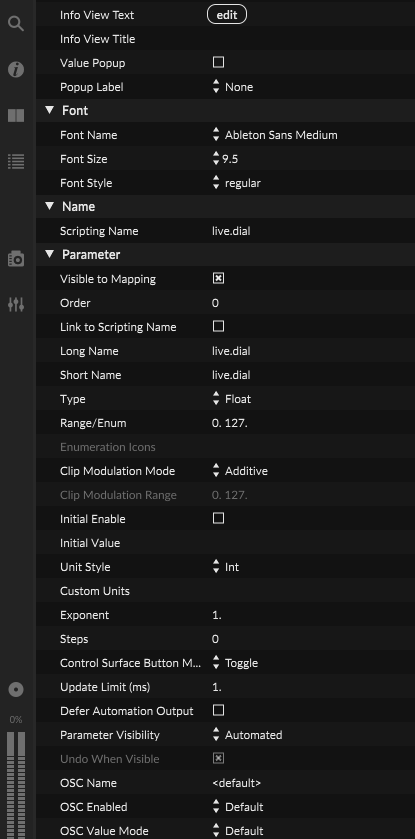
Updated the bundled version of Max to 9.1.4. The update brings new parameter visibility option for various use cases.
In case of "live." Max for Live objects, by going in the Inspector view of the object, you can now navigate in the All column to Parameter options to select the parameter visibility. The option is marked "Automated" by default, and the new "Visible" and "visible (Not Stored") modes make the parameters visible, but not able to support automation.
The "Visible" mode allows Live to store the parameter value in sets for later restore, while "Visible (Not Stored)" does not store the parameter value, making it useful for momentary controls. Note that "Visible (Not Stored)" is not yet implemented in Live, but is expected to be implemented in a future update.
The visibility modes are only available for Float, Int and Enum parameter types. By using these modes a new parameter attribute will be available in the object's inspector called "Undo When Visible". This attribute is turned on by default, but if changed, your parameter becomes invisible to Live's Undo System.
The following changes were made in this update:
-
abl.* objects: added @freezein attributes to hybrid reverb objects
-
Autocomplete: rnbo~ is preferred over rnbo.remote
-
Push 3 Standalone: improved disabling of Jitter GL
-
MGraphics mgraphics_set_dash: allow 256 dash elements
-
v8: js folder supports long extensions
Max Fixed Bugs:
-
abl.device.drift~: fixed moddst attr options
-
abl.dsp modulators: fixed macro 2 assignments
-
abl.dsp.modalresonator~: fix @Damping attribute
-
abl.dsp.saturator~: fixed setting curve type
-
BEAP: names correctly displayed in Modules sidebar
-
jit.pwindow: fixed rendering when initialized off-screen in Max for Live
-
mc.function: fixed hang with @clickinactive set to select
-
mc.generate~: fixed crash when changing channels with audio on
-
Patcher grid: fixed drawing on right/bottom
-
text: improved optimizations with large files
-
textbox / listbox: fixed crash when making a new preset
-
jsbuffer: fixed crash if no buffer name set yet
-
Parameters: Fixed an assertion which caused CI builds to fail.
-
Paths: Fixed a crash when paths were added/removed in Max for Live (Windows only).
In addition, Max for Live received the following updates:
-
Added SimplerDevice.replace_sample to the Live API. This function accepts an absolute path to an audio file and replaces the currently loaded sample in Simpler.
-
Parameters in Max for Live devices can now be configured as non-automatable or excluded from the undo history.
-
Added a new “Max for Live Developer Mode” option to the Options menu. When enabled, this mode activates the Edit button in Max for Live devices. Previously, Developer Mode could only be enabled by adding the -MaxforLiveDeveloperMode flag to the Options.txt file. As part of this change, the “Copy Max for Live Path” context menu entry is now only available while Developer Mode is active.
Arrangement View
-
In the recent update the behavior of Cmd-clicking on Mac OS has been changed. It is now possible to create an off-grid marker or create a time selection starting at an off-grid time:
-
Cmd-clicking outside the selected time range moves the insert marker at the clicked location, elongating the selection range.
-
Cmd-clicking inside the toggles the selection state of the lane or the track.
If only one track or lane is selected, Cmd-clicking inside the selected time on the selected lane will place and insert marker and not deselect the lane.
When this is taking place, the mouse cursor will have appended a plus to it when the lane's selection state is going to be toggled.
-
By pressing Esc while having selected a lane, the focus will shift to the header of the lane.
-
Added a new Copy Time menu command that lets you copy a selected time range in the Arrangement. Its shortcut is Ctrl+Shift+C on Windows and Cmd+Shift+C on Mac. Note that this shortcut was previously used for Capture MIDI. That assignment has been removed, so if you rely on Capture MIDI you will need to set a new shortcut for it manually.
Browser
-
Improved content list load performance in the Plug-Ins browser when the creator grouping option is active.
-
On Windows, you can now navigate backwards and forwards in the Browser by using the navigation buttons on the top left corner. This feature is available when Live's Browser is in focus
Control Surfaces
-
Added Control Surface support for Akai MPK mini IV.
-
Step duration editing is now supported on the Launchkey Mini MK4, Launchkey MK4, and Move. Holding a step and pressing the following step extends the duration of the held step.
-
Move Control Surface: added audio clip support in Note Mode
-
Move Control Surface now had improved the parameter mappings for Auto Shift and Erosion in control surface script.
Core Library*
Note: Core Library section has been cited in its entirety from the official Live 12.4 Release Note...
-
Added new Audio Effect Racks (Vocal Strip Complete, Guitar Amp Stack).
-
Added new Chorus-Ensemble presets that use the new Time and Tap controls.
-
Added new Delay presets that use the new LFO controls.
-
Added a new default preset for Phaser-Flanger.
-
Refined other various presets.
-
Added new Drum Racks by KUČKA.
-
Added presets for the updated Erosion device.
-
Presets for the legacy version of Erosion are now available under Packs/Core Library/Devices/Audio Effects/Legacy/Erosion Legacy.
-
Updated the default preset for Chorus-Ensemble.
-
Added new and updated presets for the Chorus-Ensemble and Delay devices.
Devices
-
Wavetable now can have a maximum 16 voices.
-
Folded devices are now renamable. By right-clicking to rename the device and selecting "Rename", the devices view will expand for increased visibility of the title.
-
Drum Sampler's filter decay can now be turned off by setting the decay parameters at its highest value.
-
Parameter naming for the delay section was improved across devices.
-
Parameter names' consistency across devices has improved.
-
Display name for filter parameters have been more consistent.
-
Parameter names in Auto Shift have been made more consistent with other devices.
Interface
-
Deactivated or other inaudible clips in Session View now have a more distinct color to better distinguish them from empty clip slots.
-
Deactivated clips in take lanes in Arrangement View have also received a color update to better distinguish what clip is used in the main lane or not.
-
Various text updates in Live 12.4.
MIDI Editing
- Increased the resize area at the start and end of a MIDI note which allows to resize the note. Now, MIDI notes can be resized by grabbing them slightly after or before their intended start. The new resizing area helps especially when, for example, notes are very short. Before, this type of resizing was only available behind the note end.
Performance*
Note: Performance section has been cited in its entirety from the official Live 12.4 Release Note...
- On Windows, enabling the EnableRealTimeWorkQueue debug option allows Live to create up to 64 threads for audio processing instead of the operating system–limited 32 real-time threads. Note that this does not necessarily improve performance, as a higher number of threads can increase thread management overhead.
Setup
- When the audio driver selected is not compatible with Link, a warning will be shown.
Session View
- Solo can now be toggled in Session View when a track or multiple tracks are selected by pressing "S" on your keyboard.
Splice Integration
-
Splice updates are now checked at startup.
-
The "Tab" and "Esc" keys can now be used for navigation into and out of Splice label.
Stem Separation
-
In High Quality mode, Stem Separation displays a total progress bar, instead of resetting progress bars for each stem type.
-
Insufficient space on your selected drive when initiating the separation process now causes an error.
-
Now, the Stem Separation process now keeps the same bit depth as the source material.
-
On macOS 26.3 computers, now the Stem Separation process will use the GPU instead of the CPU for a faster process.
Bugfixes
-
Fixed navigation behaviour of the forward and backward button in the Browser. Previously it was not possible to navigate to the Splice label, the Cloud label or the Max for Live label by using the navigation button. With the newest update, the issue has been fixed.
-
Status Bar messages for disabled parameters due to macro mapping now display the correct macro name.
-
The Min/Max slider columns in the Mapping Browser now have a minimum width of 50 px and expand to a maximum of 80 px.
-
Fixed an issue where a user preset's name would revert when toggling between the A and B device states.
-
Macro variations now fold and unfold with the device as expected.
-
Seamlessly looping unfaded Session clips now pass that behavior on to any copies or recordings made from them.
-
The Fade button is now consistently visible for all Arrangement clips and governs whether loop jumps are faded.
-
An Undo operation performed immediately after loading a Soundtoys plug-in no longer causes a crash.
-
Dragging or dropping an instrument or MIDI effect onto the Main track, or onto an incompatible track type, no longer leaves a persistent error message in the Status Bar.
-
Fixed a crash that could happen on Windows when dismissing the "Save changes" dialog and then closing Live from the taskbar no longer occurs.
-
Two full-screen mode issues on macOS when "Displays have separate Spaces" is turned off have been resolved:
-
MacBook displays with a notch no longer cause Live's window to overflow below the visible screen area.
-
The Dock and menu bar now reveal themselves correctly when the cursor reaches the relevant screen edge.
-
Disabled devices in breakout views are now fully interactive, matching the behavior of standard device views.
-
A rare crash when using the Tab key to switch between Session and Arrangement View has been resolved.
-
MIDI files whose tracks contain only meta events — tempo or time signature data, for example — no longer result in empty clips being created on import.
-
The "Bounce to New Track" option no longer appears in context menus for return tracks or the Main track.
-
Consolidating MIDI clips now preserves any probability group assignments.
-
A clip's Lead setting no longer switches to Follow as a result of bouncing.
-
Bouncing a Group Track that includes a tempo leader clip no longer risks a crash.
-
Fixed an issue where using duplicate_clip_to_arrangement via the Live API with matching source and target tracks caused a crash.
-
Soloing a device chain inside a Rack no longer incorrectly shifts the track highlight to a soloed Group Track, which previously caused Device View focus to be dropped.
-
Fixed an issue where adjusting a track's solo state through the Live API would change to the highlighted track.
-
Info View descriptions are now present for the Device View area.
-
Fixed an issue where MIDI files that previously failed to load now import correctly.
-
Deleting a track that contains an Instrument Rack with Max for Live Modulator parameters assigned to Macro Controls no longer causes a crash.
-
Fixed a crash that would occur when deleting a track containing an Instrument Rack that had Max for Live Modulator parameters mapped to its Macro Controls.
-
Fixed a crash that could occur when recovering a Live Set in certain situations.
-
Fixed an issue where a Max for Live device that had been deactivated and then turned back on after reopening a Set would not output its default values.
-
Fixed a crash when using Undo to bring back a deleted device that had automation on the Main track. The same crash could also show up when recovering a Live Set.
-
Fixed an issue where browser filters were not being reset when hot-swapping devices.
-
Fixed an issue where automated plug-in parameter names would go missing when reloading a Live Set. The Soundtoys Effect Rack was specifically affected, but the fix may help other plug-ins with similar behavior.
-
Fixed an issue where Bounce to New Track was not copying the source track's input routing over to the new track.
-
Fixed an issue where using Collect All and Save on a Set that referenced a sample with no file extension could accidentally move the .als file into the Backup folder.
-
Fixed an issue where the Main track width was not being restored correctly when opening Sets made in versions of Live older than 12.1.
-
Fixed an issue where third-party control surfaces like the SSL UC1 and Softube Console 1 would stop working properly after reordering tracks.
-
Fixed an issue where Roar's modulation section needed a double-click to open. It now opens on a single click like everything else.
-
Fixed an issue where using the arrow keys to navigate between device chain headers and track headers did not move focus the way you would expect.
-
Fixed a crash that could happen when opening the Settings window under certain conditions.
-
Fixed an issue on Windows where audio export would get stuck in rare cases where Live failed to sync with the Windows Desktop Window Manager.
-
Fixed an issue in Shaper MIDI where envelopes would get stuck in the sustain phase after a Note Off message.
-
Fixed a crash that could happen when triggering clip slot recordings one after another very quickly.
-
Fixed an issue where an Arrangement clip's name would appear as blurry doubled text when dragging it over another clip.
-
Fixed an issue where undoing a hot-swap to a Rack with fewer Macro Controls than the original would not bring all the previously visible Macro Controls back.
-
Fixed an issue where MPE Control would flicker to a larger size and then snap back immediately after loading.
-
Fixed an issue where resizing the Arrangement View could cause Live to unexpectedly zoom out.
-
Fixed a crash that could occur when using the create_audio_clip or create_midi_clip Max for Live API calls to create Arrangement clips.
-
Fixed a crash that could occur when changing the color of an Arrangement clip on a track that also had take lane clips.
-
Fixed an issue where after scrolling or zooming with the mouse wheel, you had to wait a moment before Ctrl+Alt (Win) / Cmd+Option (Mac) drag-panning would respond.
-
Fixed an issue where making changes to scale settings in a Set would not enable the save option.
-
Fixed an issue where having a Max for Live MIDI effect before Arpeggiator in the chain could cause its note output to change unexpectedly.
-
When using Arpeggiator in Synced mode, there is now a 5 ms grace period after each grid division. If the first note lands within that window, it is treated as belonging to the previous division so the sequence starts right away instead of waiting for the next one.
-
Fixed an issue where Rack sliders were hard to see in dark themes or when a mapping was active.
-
Fixed an issue where dragging the left clip of a crossfade past the right clip would reset the crossfade entirely.
-
Fixed an issue where locators were not being included when cutting, copying, pasting, or duplicating time in the Arrangement.
-
Fixed an issue where plug-in windows would open in the wrong order and could not be rearranged.
-
Fixed an issue where MPE Control was sending out a CC 74 message on load when it should not have been.
-
Fixed an issue where freezing or bouncing a track with real-time devices could accidentally disable devices on other tracks involved in sidechaining or Max for Live modulation, leading to incorrect audio output.
-
Fixed an issue where freezing a track with External Instrument would cause other MIDI tracks to stop playing back.
-
Fixed an issue where bouncing transposed unwarped clips to a new track in Session View would produce clips with the wrong length.
-
Fixed an issue where an open video window would close whenever you dragged and dropped something elsewhere in Live.
-
Fixed an issue where main lane clips that were edited while auditioning a take lane would play back incorrectly afterward.
-
Fixed a crash that occurred when moving a breakpoint after the insert marker had been moved away from and then back to its original position.
-
Fixed an issue where performing stem separation from the browser on an empty Set would not update the Set's tempo to match the resulting clips.
-
Fixed an issue where running stem separation on an unanalyzed sample from the browser would not produce correct Warp Markers and onsets.
-
Extended the repair system for corrupt documents with non-unique Pointee IDs to catch more cases.
-
Fixed an issue where the mixer's volume section layout would not update correctly when track height or width was changed.
-
Fixed an issue in Shifter where audio that should have been delayed was getting cut off early.
-
Fixed an issue where tempo-synced AUv3 plug-ins would lose track of Live's tempo after changing the sample rate in Settings.
-
Fixed an issue where the Info View would show "Slice to New MIDI Track" text when the Extract Chains option was selected.
Live 12.3 Release Notes
November 25, 2026
Stem Separation
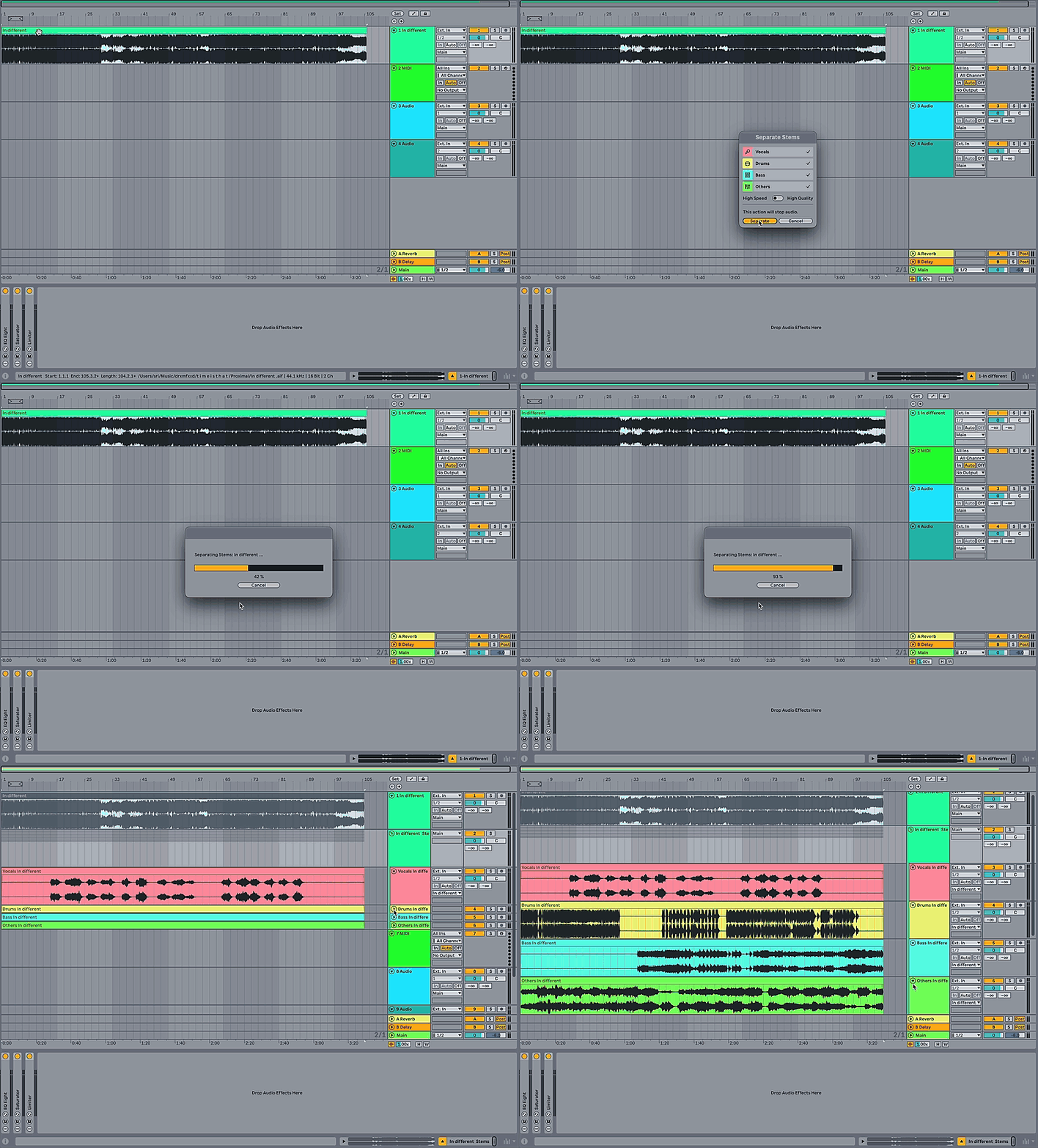
Live Suite now features Stem Separation from audio tracks in both Session and Arrangement mode. The process extracts 4 different stem types: Bass, Vocals, Drums and Others.
You can use this feature by right-clicking on a desired clip in a track or in the browser and selecting stem separation in the pop-up menu. The Others stem captures everything in the selected audio clip that does not fit into the Bass, Drums, or Vocals categories. The stems appear under a new group track which possesses the effects which were present on the original track.
Stem Separation in the newest addition of Live Suite you can select between two modes of separating stems depending on your requirements. The High speed mode separates the audio in a single pass, making the process faster. The High Quality mode separates the audio in multiple individual passes for each stem type. The High Quality mode improves separation accuracy with a higher Signal-to-Distortion, at the cost of speed.
The separation processing time heavily depends on your system's configuration. On older Windows computers, Intel Macs and Mac computers running macOS 11 Big Sur processing times might take a longer time. Due to compatibility issues, stem separation will also run slowly on Apple Silicon computers with macOS 26.1 Tahoe. See the following article for more information on macOS compatibility with Live.